Solve the iOS18(& higher) Location Problem by iAnyGo [POGO Black Screen Solution]
by Ryan Carter Updated on 2026-01-26 / Update for change location

Many iAnyGo users have recently experienced a black screen when opening Pokémon GO after turning on IPlocate . This comes from new iOS system changes that conflict with location-modifying tools.
The quick fix is to turn off IPlocate first, launch Pokémon GO until it loads, then re-enable it - and remember to disable IPlocate before opening any other app as well. For a more stable long-term solution, this guide will show you how to use NextDNS to avoid the GPS checks introduced in recent iPhone updates and to prevent common issues like Pokémon GO Error 12.
Location Keep Resetting Background
Skip ahead if you're eager to see the solution immediately.
Some of the users will have the location revert back to the real location problem after upgrading to iOS18 or higher.
- It's not a problem that only iAnyGo has.
- It's a common issue for all location changer products.
- The update in how iOS18 detects location is the cause.
iOS18 introduces several enhancements to precise location logic, including improved accuracy, the introduction of temporary permission features, optimized reset and calibration processes, and strengthened detection of fake locations.
In short, iOS18 has made significant improvements to its location services, making it much harder for location spoofing tools to operate as they did on earlier versions.

Before we release an update for iAnyGo, you can try the solution below to make your spoofing more stable.
The Solution for Location Keep Resetting or Error 12
-
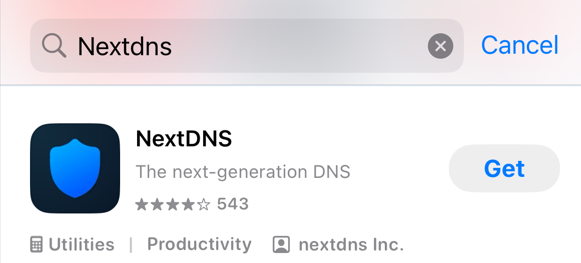
Download the NextDNS in the App Store, and open it.
-
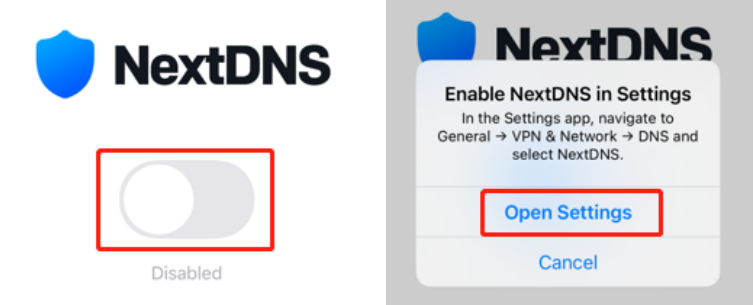
Toggle on NextDNS, and then Open Settings.
-
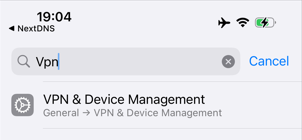
Search "vpn" and go to"VPN & Device Management".
-
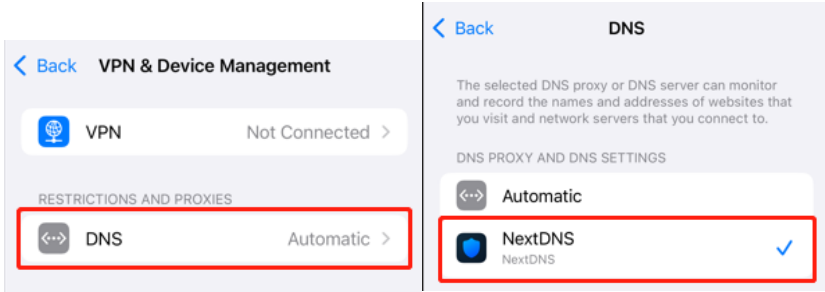
Click "DNS", then choose "NextDNS".
-
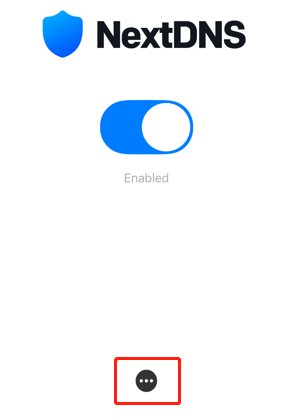
Go back to NextDNS, and click the three dots button.
-
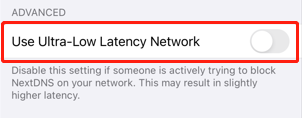
Toggle off "Use Ultra-Low Latency Network".
-
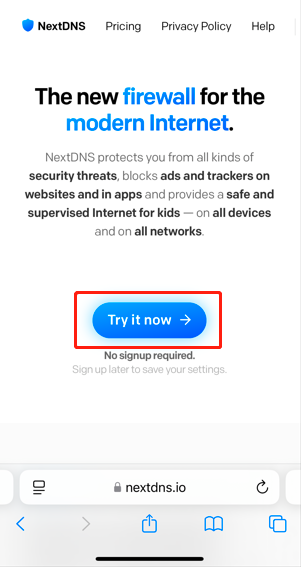
Open your mobile browser, and go to nextdns.io, then click "Try it now"
-
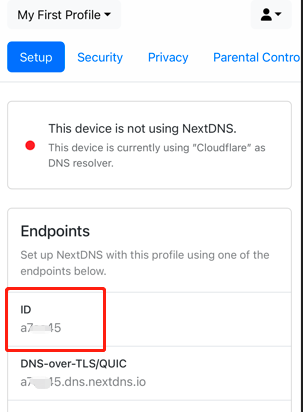
Take note of this ID on the Setup section, which will be used to sync the settings to your NextDNS mobile app in later steps.
-
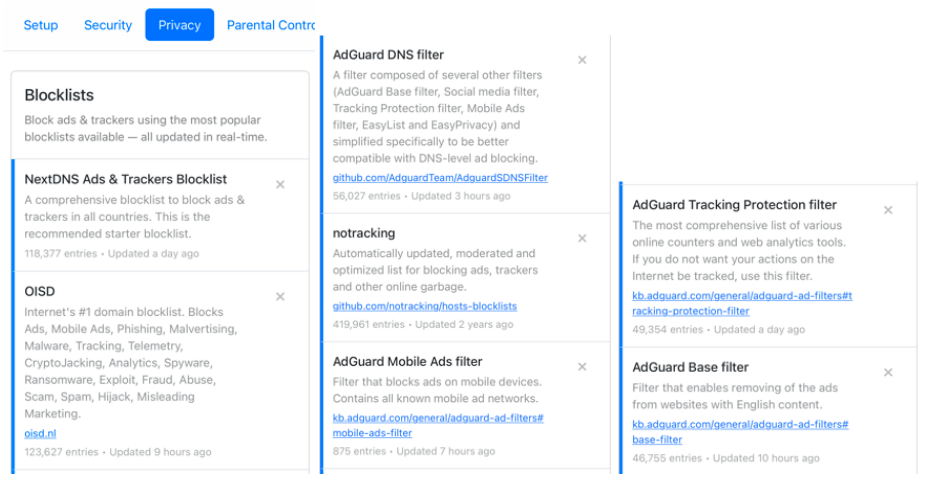
Then go to the Privacy section and click "ADD A BLOCKLIST".
Add OISD, notracking, and AdGuard related options to the list.
-
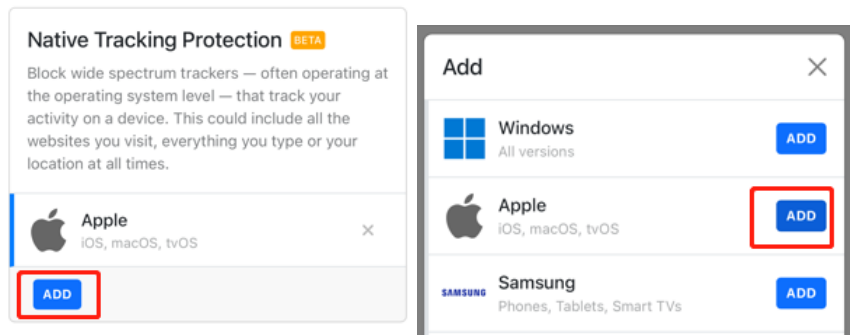
And also add Apple to "Native Tracking Protection."
-
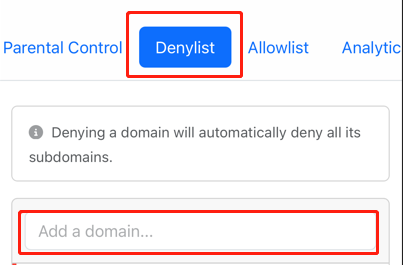
Now go to the Denylist section, and add the domains below:
- akadns.net
- akamai.net
- aaplimg.com
- mzstatic.com
- icloud.com
- edgekey.net
- iphone-service.com
- apple-dns.net
- apple.com
- gs-loc.apple.com
-
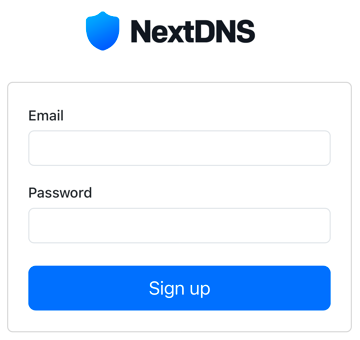
Now, sign up your Nextdns account to save all the settings to your account, or it will expire after 7 days.
-
Next, go back to NextDNS on your phone, and click the 3-dot to open its settings.
-
Toggle the "Use Custom Configuration", and fill in the ID you recorded in step 8.
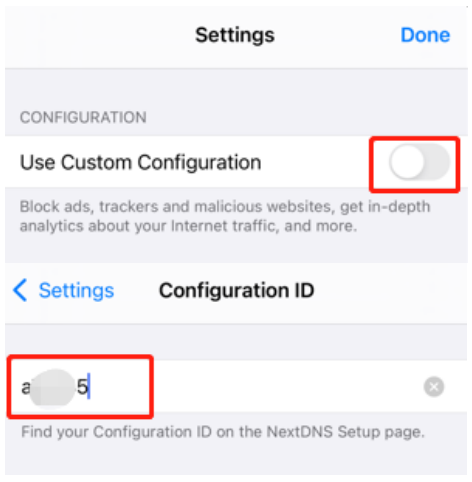
- Making sure you have toggled NextDNS on. Now you can change your location with iAnyGo, and fly worldwide in Pokemon Go.
Things to Notice
- 1. Do not use VPN at the same time.
- 2. Turn Airplane mode on if you are using WiFi.
- 3. Turn WiFi off in phone settings(Not in Control Center) if you are using Cellular.
- 4. If the location doesn't change, try to toggle location service off and on in the phone settings. (Sometimes, you need to repeat it several times.)
Ask for Help
Feel free to discuss this solution with iAnyGo community members and share whether it worked for you. Our community is full of helpful members ready to assist!
Discord community invite link: iAnyGo official Discord
